
 Shabackat PBXGuidebook


Contents
I · Welcome
II · Set up the system
- 03Sign in and look around
- 04Add extensions
- 05Connect phones
- 06Users and roles
- 07Connect a phone line
- 08Outbound routes
- 09Phone numbers
III · Design the call flow
- 10Business hours and prayer times
- 11IVR menus
- 12Ring groups
- 13Messages, music and caller tune
- 14Voicemail
- 15Conferences and paging
IV · Run a contact centre
V · Every day
VI · Safety and reference
Appendix
Part I
Welcome
What Shabackat PBX is, how a call travels through it, and what to have ready before you start.
IPart I · Welcome
Meet Shabackat PBX
Shabackat PBX is a complete business phone system: your staff's extensions, your company numbers, menus, call-centre queues and AI voice agents, all run from one web panel.
Everything in this guide happens in the panel, the website where you manage the phone system. You open it in a browser, sign in, and every setting, report and recording is there. The panel is fully bilingual: switch between English and Arabic at any time with the button in the top bar, and it flips to right-to-left.
Shabackat PBX runs on its own calling engine, built by Shabackat Technology. It does not depend on Asterisk or any other outside phone software, so every feature in this guide is part of one system and is set up in one place.
Any phone
Staff take calls on Zoiper (computer or mobile), desk phones from Yealink, Grandstream and Fanvil, or the web phone built into the panel.
Made for Saudi Arabia
Arabic and English prompts, Saudi carriers, the Saudi dial plan, prayer times, Hijri holidays and the Sunday-to-Thursday week.
A real contact centre
Queues with live monitoring, agent breaks, wrap-up time, keypad surveys, call recording and quality scores.
AI voice agents
A virtual receptionist that answers in Saudi Arabic or English, takes messages and transfers callers, plus outbound AI campaigns.
Everything on record
A live dashboard, call history with recordings, voicemail in the browser, survey results and an audit log.
Safe by default
Toll-fraud protection, calling permissions per extension, encrypted passwords, and agents who never see colleagues' data.
How a call travels
Most of the setup is deciding what happens to a call. Here is one call from start to finish, using the example company in this guide. Each stop is a chapter.
- Phone line · Chapter 7
A customer dials 9200 12345
The carrier (here STC) delivers the call to the PBX over the phone line.
- Phone number · Chapter 9
The number decides where it goes
The unified number is set to go to the company's business hours.
- Business hours · Chapter 10
Open, closed, prayer time or a holiday?
Business hours check the clock and the calendar, then send the call the right way.
Open → IVR menuClosed → after-hours messagePrayer → short break messageHoliday → holiday message - IVR menu · Chapter 11
"For sales press 1, for support press 2"
The caller chooses with the keypad, or dials an extension directly.
- Queue · Chapter 16
The caller waits their turn
Hold music plays and the caller hears their position until an agent is free.
- Extension · Chapters 4 and 19
An agent answers
The agent's web phone, Zoiper or desk phone rings. After the call, a keypad survey can ask the caller for a rating.
- Voicemail · Chapter 14
Nobody free? Leave a message
If no one answers in time, the caller goes to voicemail and can leave a message.
Part I · Welcome
Before you begin
Twenty minutes of preparation makes the setup quick. Collect these first.
- 01The panel address and an administrator accountFor example https://pbx.shabackat.sa. Your first administrator account comes with the system; keep its password somewhere safe.
- 02A list of your peopleName, department and email for each person, and the extension number you want them to have. Four-digit numbers such as 1001–1099 work well.
- 03Your carrier's welcome packFrom STC, Mobily, Zain, Salam, GO or an international provider: the server address or IP, username and password if any, and the list of your numbers (DIDs).
- 04Your call planOpening hours, which prayers fall inside them, the menu options you want callers to hear, and who answers each kind of call.
- 05Headsets and phonesA USB headset per agent for the web phone or Zoiper, or desk phones and their MAC addresses.
Who does what
Every person who signs in to the panel has one of three roles. Chapter 6 shows how to give them out.
Administrator
Sets it up
- Every setting and page
- Extensions, lines and numbers
- Users, security and backups
Supervisor
Runs the floor
- Live calls and queue monitor
- Listen, whisper and barge
- Conferences, surveys and AI agents
Agent
Takes the calls
- Their own web phone and status
- Their own calls, recordings and voicemail
- Sign in to queues and take breaks
Part II
Set up the system
Sign in, add your people and their phones, connect a phone line, and decide how calls come in and go out.
IIPart II · Set up the system
Sign in and look around
Open the panel in any modern browser, sign in, and meet the dashboard you will come back to every day.
- Open the panel address in Chrome, Edge, Safari or Firefox, on a computer, tablet or phone.
- Enter your username and password and press Sign in. If you forget your password, an administrator can reset it under Administration › Users.
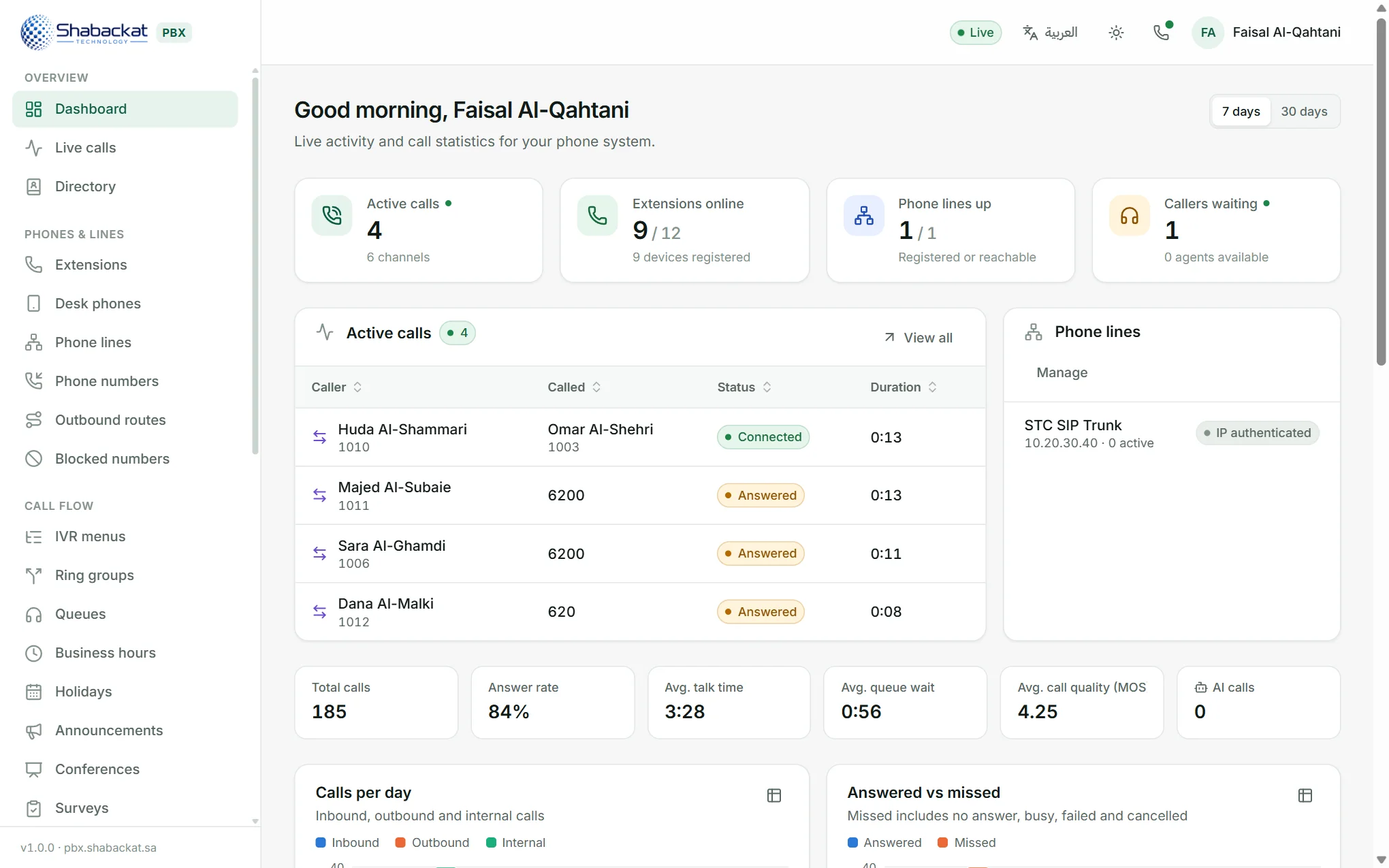
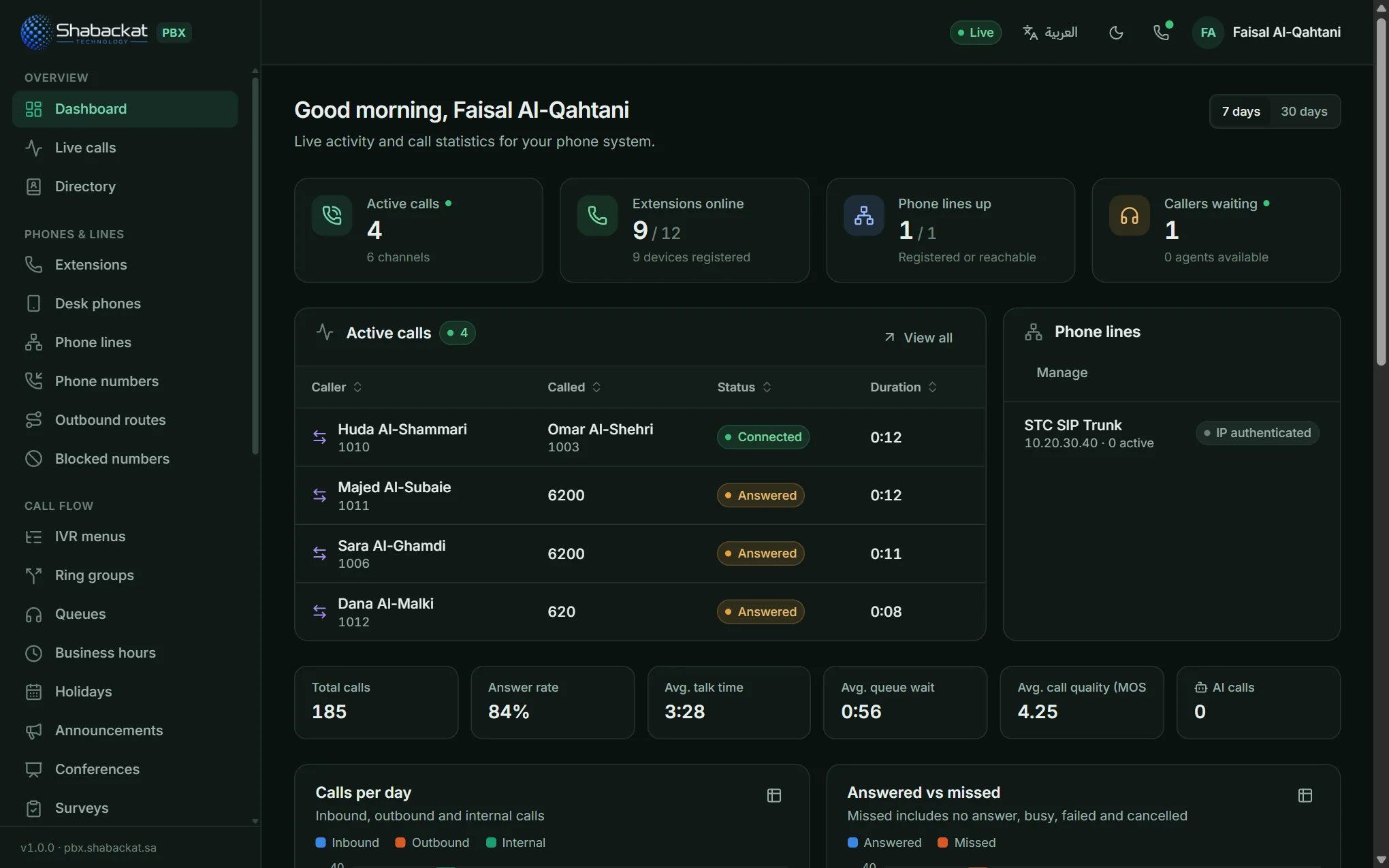
- Choose your language and theme. The العربية / English button in the top bar switches the language; the sun and moon button switches between light and dark.
After signing in you land on the dashboard. The four cards at the top are live: calls in progress, extensions online, phone lines up and callers waiting in queues. Below them are call statistics for the last 7 or 30 days: total calls, answer rate, average talk time, average queue wait and call quality.
The menu on the left is grouped the way this guide is: Overview, Phones & lines, Call flow, AI calling, Reports, Resources and Administration. People only see the pages their role allows.
Part II · Set up the system
Add extensions
An extension is a person's internal number. It is what rings when someone calls them, and what their phones sign in with.
- Open Phones & lines › Extensions and press Add extension.
- Fill in the General tab: the extension number (2 to 8 digits), the person's name, email, department and the language of their voice prompts. The PBX creates a strong SIP password for the phones.
- Set a voicemail PIN on the Voicemail tab, 4 to 10 digits. It is needed to listen from another phone. Easy PINs (1234, 0000, 4321 or the extension number) only work from the person's own phone.
- Check the calling permission on Security & limits. Local is the default: Saudi landlines, mobiles and 800 numbers.
- Press Save. The extension can now be used on several phones at once, five by default and up to ten.
To add a whole team at once, use Bulk create and enter a range of numbers with their names.
The other tabs
| Tab | What it controls |
|---|---|
| Voicemail | Mailbox on or off, the PIN, email notification with the recording attached, and the longest message allowed. |
| Forwarding & follow-me | Forward always, when busy, when not answered or when offline, to a colleague or a mobile. Follow-me rings the person's mobile too. |
| Recording | Record inbound, outbound and internal calls: never, always, or on demand. |
| Security & limits | Calling permission, how many devices and calls at once, the longest call allowed, and which networks and connection types the phones may use. |
| Advanced | Codecs, audio encryption, pickup group and supervisor rights. |
| Calling permission | What the extension may dial |
|---|---|
| Internal only | Other extensions only, plus emergency numbers. |
| Local | Saudi landlines, mobiles and toll-free 800 numbers. |
| National | Also unified 9200 numbers, shared-cost and other national services. |
| International | Also international and premium-rate numbers. |
Part II · Set up the system
Connect phones
Every extension can ring on a softphone, a desk phone and the web phone at the same time. The panel gives step-by-step instructions for each.
In the extensions list, press the connect button at the end of a person's row (or Connect a phone in the editor). The window shows the four details every phone needs, with copy buttons, and a tab for each app.
- Zoiper for computer: install Zoiper 5, choose "Continue as a Free user", enter extension@your-domain and the password, then the server name. Choose "SIP UDP" (or TCP) when it tests the connection.
- Zoiper for mobile: the same details, entered in the Zoiper app on iPhone or Android.
- Linphone: scan the QR code on the Linphone (QR) tab and the account sets itself up.
- MicroSIP and other apps: use the server, username and password shown at the top.
Once a phone is connected, dial *43 for the echo test: speak, and you hear yourself back. It checks the microphone and speaker in one go.
Desk phones
Yealink, Grandstream and Fanvil phones can set themselves up. Under Phones & lines › Desk phones, add the phone's MAC address (printed on a label underneath), its brand and model, and the extension it belongs to. The phone downloads its settings from the PBX when it starts. The provisioning password is under Settings › Phone provisioning.
The web phone
No installation at all: every user with an extension can call from the panel. Press the phone button in the top bar and allow the microphone when the browser asks. Chapter 19 covers it in full.
Part II · Set up the system
Users and roles
Users are the people who sign in to the panel. Linking a user to an extension gives them their own web phone, call history and voicemail.
- Open Administration › Users and press Add user.
- Enter a username, name and a strong password, and choose the language the panel opens in.
- Pick the role: Administrator, Supervisor or Agent (see Who does what).
- Link their extension so the web phone, dashboard and reports show their own calls.
Part II · Set up the system
Connect a phone line
A phone line (SIP trunk) connects the PBX to your carrier, so calls can reach real numbers and come in from them.
- Open Phones & lines › Phone lines and add a line.
- Choose your carrier's template. Saudi business trunks are usually IP authenticated: the carrier knows the PBX by its address. Some cloud trunks use a username and password instead (registration). Twilio, Telnyx, DIDWW and generic providers have their own templates.
- Enter the details from the welcome pack: the carrier's server or IP, and the username and password for registration lines. The template fills in the technical settings.
- Set the default caller ID, usually your main number, and save.
The line then shows as Registered or IP authenticated. The dashboard's Phone lines up card tells you at a glance if a line goes down.
Part II · Set up the system
Outbound routes
Outbound routes decide which phone line carries each kind of number your staff dial, and how the number is sent.
- Press Apply Saudi dial plan. It creates routes for emergency numbers, Saudi mobiles, landlines, toll-free 800, unified 9200 and international calls, all on your phone line.
- Test a number in the box at the top. It shows which route matches, which line is used and exactly how the number is sent, for example 0501234567 → 966501234567.
- Adjust if needed: reorder routes with the arrows (the first match wins), add a second line for failover, or change the class a route needs.
The Needed class column works with each extension's calling permission from Chapter 4: an extension set to Local can use routes that need Local, but not International ones.
Part II · Set up the system
Phone numbers
Each public number (DID) your carrier gives you goes somewhere: a menu, a queue, a person, business hours or an AI agent.
- Press Add number and enter it in international format without the plus, for example
966112345678. - Choose where calls go under Goes to. Most companies send their main number to business hours (Chapter 10) and a direct line to a ring group or person.
- Pick the language callers on this number hear, and optionally match only certain callers by the start of their number, for example for a VIP line.
- Add a catch-all with Add catch-all for any number that has no route of its own.
Part III
Design the call flow
Opening hours, prayer times and holidays, the menu callers hear, groups that ring together, messages and music, voicemail and meeting rooms.
IIIPart III · Design the call flow
Business hours and prayer times
Business hours send calls one way when you are open and another way when you are closed, at prayer time, or on a holiday.
- Add the official holidays first. On Call flow › Holidays, press Add official Saudi holidays: Founding Day, National Day, Eid al-Fitr and Eid al-Adha. The Eids follow the Umm al-Qura calendar, so they move each year by themselves.
- Create the schedule under Call flow › Business hours. The default is Sunday to Thursday, 08:00 to 17:00, Riyadh time. Change it on the Weekly hours tab.
- Choose the routes on Routing: When open (usually your IVR menu) and When closed (usually an after-hours announcement or voicemail).
- Tick the holidays on the Holidays tab and choose where calls go on those days.
- Turn on prayer times on the Prayer times tab.
The banner at the top of the editor always tells you the state right now and when it changes next, for example Open → IVR menu · changes at 11:45.
Prayer times
During opening hours, calls can follow a different route for a set time after each adhan. Times are calculated every day for your city with the Umm al-Qura method, so there is nothing to update.
- Switch on Divert calls during prayer times.
- Choose your city: Riyadh, Jeddah, Makkah, Madinah or Dammam, or enter custom coordinates.
- Tick the prayers that fall inside your hours (usually Dhuhr and Asr) and set the closure length, 5 to 90 minutes.
- Pick the destination, for example an announcement saying "we are at prayer and will be back shortly".
Part III · Design the call flow
IVR menus
An IVR menu greets callers and lets them choose with the keypad: 1 for sales, 2 for support, and so on.
- Press New IVR menu and give it a name and, if you like, an internal number such as 500, so staff can transfer callers back to it.
- Set the greeting. Upload a recording, or choose Text-to-speech and type what callers should hear. Write it for me writes the text from your keypad options; Listen plays it back.
- Add keypad options on the next tab: each key sends the caller to a queue, ring group, extension, another menu, voicemail, an AI agent and more.
- Decide what happens on no answer under No answer & errors: how long to wait for a key, how many retries, and where to send callers who press nothing.
Callers who know an extension number can dial it straight from the menu.
Part III · Design the call flow
Ring groups
A ring group rings several people with one number, for example reception or the finance team.
- Press New ring group, give it a number (for example 600) and a name.
- Add the members: extensions, or outside numbers such as a manager's mobile.
- Choose the strategy: Ring all (everyone at once, first to answer takes it), One by one (in the order listed) or Random order.
- Set the ring time and what happens if nobody answers, for example voicemail.
Part III · Design the call flow
Messages, music and caller tune
Announcements, hold music and the caller tune shape what callers hear while they wait.
Announcements
An announcement plays a message and then sends the caller on, for example an after-hours notice followed by voicemail, or a recording notice before a queue. Upload a recording or type the text for text-to-speech, choose how many times it plays and where the caller goes next.
Music on hold
Callers on hold and waiting in queues hear music. The PBX includes four original pieces made for phone lines and free to use: Calm piano, Oud · Maqam Hijaz, Bright and Ambient. The default hold music plays them one after another. To use your own, open Resources › Prompts & music › Music on hold, create a class and upload files; each queue can use a different class or a single built-in piece.
Caller tune
Instead of the ringing tone, callers can hear music while your phones ring. Under Administration › Settings › General, switch on Play music instead of the ringing tone and choose the music. By default only outside callers hear it; tick Also when colleagues call each other to use it for internal calls too.
Each person can pick the web phone's own ringtone too: Marimba, Classic bell, Chime, Oud or Digital, under the web phone's audio settings.
Part III · Design the call flow
Voicemail
Every extension has a mailbox. Messages can be heard from any phone, in the panel, or by email.
- From a phone, dial
*97for your own mailbox; from your own phone no PIN is asked. From any other phone, dial*98, then the mailbox number and its PIN. - In the panel, open Reports › Voicemail. Agents see only their own mailbox; administrators can open any. Playing a new message marks it as heard.
- By email: switch on email notification on the extension's Voicemail tab. It needs the mail server details under Settings › Email (SMTP).
Part III · Design the call flow
Conferences and paging
Meeting rooms that anyone can dial into, and paging groups that speak on many phones at once.
Conference rooms
- Press New conference room, give it a number (for example 6100) and a name.
- Add a PIN if the room is private, and a leader PIN if the meeting should wait for its leader.
- Choose the options: record the meeting, music while someone is alone, announcements when people join and leave, everyone muted on joining.
People join by dialling the room number from any extension, or from outside through an IVR option. During any call, the web phone's Add person button turns a two-person call into a conference on the spot (Chapter 19).
Paging and intercom
A paging group has a number that makes every member phone answer on its speaker, for announcements to a floor or a warehouse. For a single person, dial *80 followed by their extension to speak on their speaker straight away (intercom).
Part IV
Run a contact centre
Queues with live monitoring, keypad surveys after calls, and AI voice agents that answer and call for you.
IVPart IV · Run a contact centre
Queues
A queue holds callers in line with music and announcements until an agent is free, then offers the call fairly.
- Press New queue, give it a number (for example 620), a name and the language of its announcements.
- Pick a distribution strategy. Longest idle is the fairest: the agent who finished a call longest ago rings first.
- Add agents on the Agents tab. A penalty lets you prefer some agents: lower penalties ring first.
- Set the timing: how long an agent's phone rings, the pause between tries, wrap-up time after each call, your service-level target and the longest a caller may wait.
- Shape the caller experience: a welcome message, the hold music, and how often callers hear their position and expected wait.
- Under Advanced, choose whether calls are recorded and where callers go if the wait runs out, for example voicemail.
The live monitor
The Live monitor tab shows each queue as it happens: callers waiting and for how long, every agent's state, and today's figures: offered, answered, abandoned, service level and average wait. Supervisors can sign agents in or out and pause them from here.
How agents work the queue
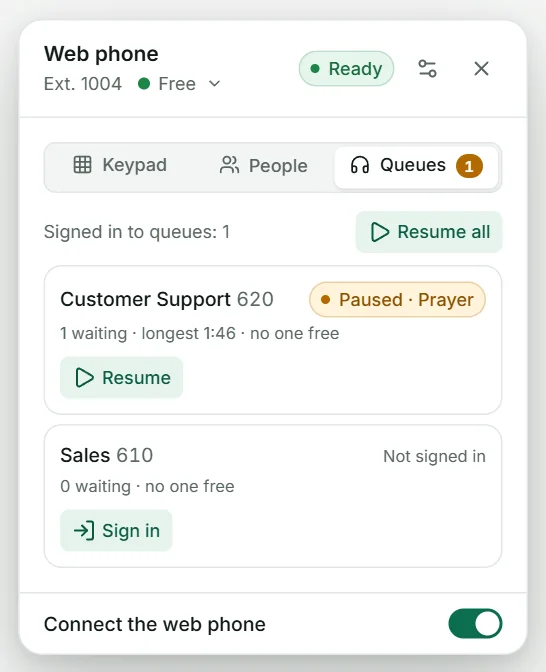
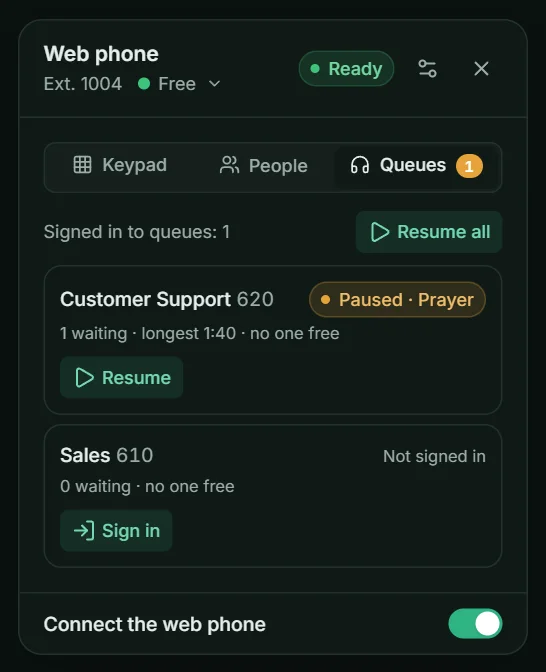
Agents sign in and out, take breaks and end wrap-up early from the Queues tab of their web phone, or with *45 from any phone. A break has a reason: Break, Lunch, Prayer, Meeting or Training, which supervisors see on the monitor. Sign-ins and breaks survive a restart of the system.
Part IV · Run a contact centre
Surveys
After a call, the caller answers a few keypad questions such as “rate us from 1 to 5”. Results appear per question and per agent.
- Press Add survey, give it a number (for example 8500), a name and its language.
- Write an introduction, then up to ten questions. For each, choose the highest key accepted: 5 for a 1-to-5 rating, 2 for yes or no.
- Add a thank-you message and save.
- Send callers to it. Agents press Survey on the web phone at the end of a call: their part ends and the caller hears the questions. You can also choose the survey as the destination of any route.
Part IV · Run a contact centre
AI agents and campaigns
AI agents answer calls in Saudi Arabic or English, take messages and transfer callers. Campaigns let them place calls for you.
- Add your AI provider keys under Settings › AI. Nothing leaves your system until you do.
- Press New agent, name it (it introduces itself with this name), give it an internal number such as 7001 and pick the language: Arabic, English or Automatic.
- Choose the voice and engine on Voice & engine.
- Describe the job on Behaviour: the instructions, the greeting and a knowledge base of facts, such as your services, prices and hours.
- Give it actions: the teams it may transfer to (for example "sales" and "support"), whether it may end calls and take messages.
- Press Test call to talk to it from the browser, then choose it as the destination of a phone number or IVR option.
After each call you get a summary, any details you asked it to collect, and the recording, under AI calling › AI call log.
Campaigns
A campaign has an AI agent call a list of people, for appointment reminders, confirmations or follow-ups. Import the list, write the instructions with placeholders such as {{name}} and {{date}}, and set the calling window. By default it only calls from 09:00 to 21:00 Riyadh time, retries unanswered numbers, and can detect voicemail.
Part V
Every day
Making and taking calls in the web phone, and keeping an eye on how the day is going.
VPart V · Every day
The web phone
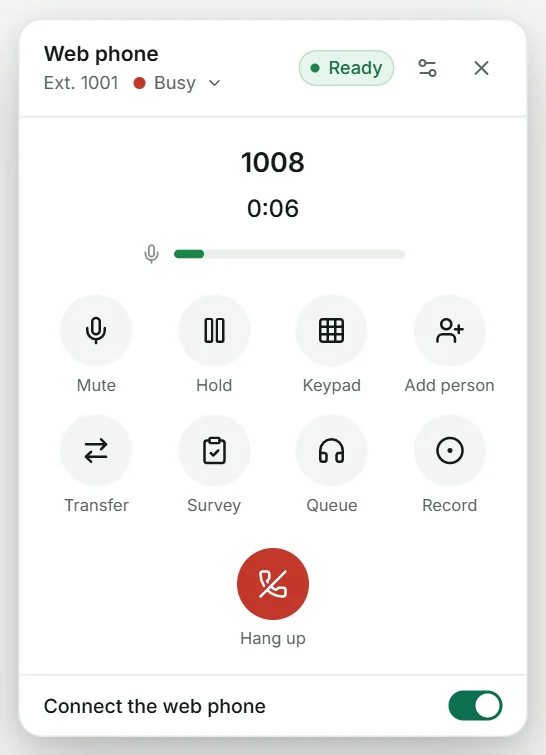
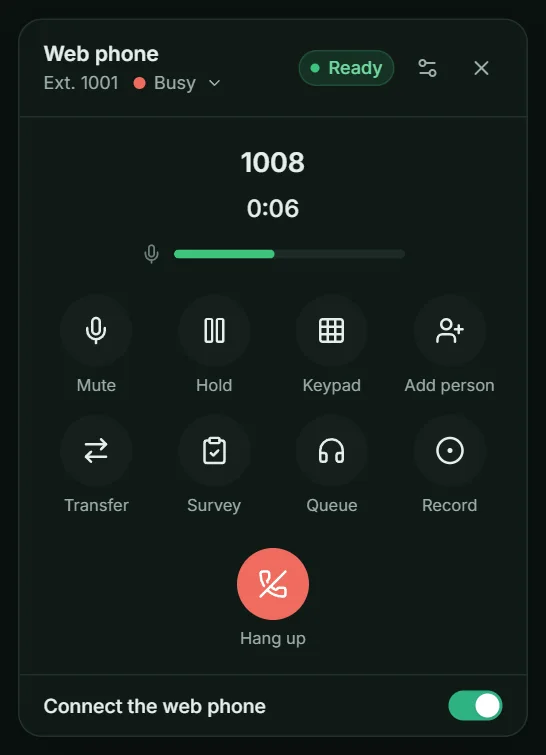
The web phone turns the panel into a full business phone: calls, transfers, conferences, queues and your status, with just a headset.
- Press the phone button in the top bar and switch on Connect the web phone. Allow the microphone when the browser asks. Ready means you can make and take calls.
- Dial an extension or any number on the Keypad, or pick a colleague from People, which shows who is free.
- Check your audio with the settings button next to Ready: the microphone, the speaker and your ringtone. A warning appears if your microphone is silent.
During a call
| Button | What it does |
|---|---|
| Mute · Hold | Silence your microphone, or put the caller on hold. |
| Keypad | Send key presses, for example to another company's menu. |
| Add person | Call a colleague or number and join them to the call. Remove anyone from the list later. |
| Transfer | Hand the caller straight to another extension or number. |
| Survey | Send the caller to a keypad survey; your part of the call ends. |
| Queue | Send the caller to a queue, so the next free agent takes them. |
| Record | Start or stop recording, if your extension allows recording on demand. |
Your status
Press your status under the phone's title. Free: calls ring as normal. Busy: callers go to voicemail or your busy forwarding. Not available: calls follow your "when unavailable" forwarding. Colleagues see your status in the directory. If you leave the panel idle for a long time, you show as idle.
Queues and breaks
The Queues tab lists your queues with how many callers are waiting, and a badge shows the waiting count on the tab itself. Sign in and Sign out join or leave a queue; Pause starts a break with a reason and Resume ends it. Pause all and Resume all do every queue at once. After a queue call, a short wrap-up time gives you a moment to finish notes; press Ready to take the next call sooner.
Part V · Every day
Watch and report
Follow calls live, look anything up afterwards, and listen to recordings.
Live calls
Overview › Live calls lists every call in progress with who is talking, how it is being handled and its codec. From the menu at the end of a row you can hang up or start recording. The Registered devices tab lists every connected phone.
Listen, whisper and barge
Supervisors can join an agent's call from any phone: 555 + extension to listen silently, 556 + extension to whisper to the agent only, and 557 + extension to join both sides. While connected, press 4, 5 or 6 to switch between the three.
Call history
Reports › Call history keeps every call: time, from, to, talk time, wait time in the queue, the result and a call-quality score (MOS, where 4 and above is excellent). Filter by date, direction, result or extension, play recordings in the row, call a number back, or press Export CSV for a spreadsheet.
Recordings
Reports › Recordings gathers every recorded call in one place, to play, download or delete. Recordings are kept for 90 days by default and then deleted automatically; change the period and the file format (MP3 or WAV) under Settings › Call recording.
What agents see
Agents get their own dashboard: their active calls, new voicemail, their queues with a Resume or Sign in button, and their recent calls. It never shows colleagues' calls.
Part VI
Safety and reference
Protect the system from fraud, fine-tune the settings, and keep the feature codes close at hand.
VIPart VI · Safety and reference
Security
Phone systems attract fraud: strangers try to guess passwords and make expensive international calls on your bill. The PBX blocks them automatically.
- Automatic blocking. An address that fails too many sign-ins is blocked for a while (by default 8 failures within 10 minutes blocks it for 1 hour). Change the thresholds with Protection settings.
- Locked phone sign-ins. After repeated wrong SIP passwords, an extension is locked for that one address only; the owner's other phones keep working, and the lock expires by itself.
- Block an address by hand for 1 hour, 24 hours, 7 or 30 days, with a reason for the audit log.
- Blocked numbers (under Phones & lines) stop nuisance callers by number or prefix, for example
0501110000or97150*. - Calling permissions keep most extensions on Local. Give International only to people who need it.
- The audit log records who changed what and when.
Part VI · Safety and reference
Settings and feature codes
System-wide options live under Settings. Each section saves separately, so changing one never touches the others.
| Section | What it holds |
|---|---|
| General | Company name, time zone, default caller language, ringing and busy tones, the caller tune, number format (966, 0 and 00) and where calls to unrouted numbers go. |
| SIP & NAT | The SIP domain and public address phones and carriers use. |
| Security | Automatic blocking thresholds and sign-in protection. |
| Email (SMTP) | The mail server used for voicemail emails and notifications. |
| AI | Keys for the speech and language providers used by AI agents. |
| Call recording | File format and how long recordings are kept. |
| Phone provisioning | The password desk phones use to download their settings. |
| Feature codes | The star codes below. Change one only if it clashes with your numbering. |
Feature codes
Dial these from any phone on the PBX: desk phone, Zoiper or the web phone.
Voicemail
Do not disturb and forwarding
Pickup and parking
Queues and calls
Supervisors
Tests
Appendix
Launch checklist
Tick these off before your first real customer calls. Your ticks are saved in this browser.
Appendix
Glossary
The words this guide uses, in plain language.
- PBX
- Private branch exchange: your company's own phone system, connecting internal extensions to each other and to the outside world.
- Extension
- A person's internal number, such as 1004, and the account their phones sign in with.
- Phone line (SIP trunk)
- The connection to a carrier that carries outside calls.
- DID
- Direct inward dialling: a public phone number that rings in your PBX.
- SIP
- The standard language phones and carriers use to set up calls.
- Softphone
- A phone app on a computer or mobile, such as Zoiper, Linphone or MicroSIP.
- IVR
- Interactive voice response: a menu callers choose from with the keypad.
- Queue
- A line where callers wait for the next free agent.
- Ring group
- One number that rings several people together or in turn.
- Wrap-up time
- A short pause after a queue call before the agent's next one rings.
- Service level
- The share of queue calls answered within your target time, for example 30 seconds.
- MOS
- Mean opinion score: call audio quality from 1 to 5, where 4 and above is excellent.
- Feature code
- A short star code dialled from a phone to use a feature, such as
*97for voicemail. - Toll fraud
- Criminals using a hacked phone system to make expensive calls at the owner's cost.